How to Set Up Your Google Business Profile to Maximize Customer Reviews
Learn how to set up Google Business Profile for reviews. Our step-by-step guide covers claiming, verifying, and optimizing your profile to get more customer feedback.
Posted by
 Miracle Nnamdi
Your future customers are searching for you on Google right now. In the few seconds they spend looking at your search result—especially in the crucial "map pack"—what they see can make or break their decision to contact you. A 4.9-star rating with dozens of recent, positive reviews builds instant trust. No reviews, or worse, a few old negative ones, can send them straight to your competition.
Setting up your Google Business Profile (GBP) correctly is the critical first step to unlocking a steady stream of customer reviews, building that trust, and boosting your local SEO. A profile that's simply "created" is not enough; it must be fully optimized with the specific goal of encouraging and managing customer feedback.
This guide provides a comprehensive, step-by-step process to create, claim, and optimize your GBP specifically to attract and manage customer reviews effectively. By the end, you will have a powerful tool working 24/7 to convert searchers into customers.
Before You Begin: Prerequisites and Tools
Before diving in, gathering a few key pieces of information will make the setup process smooth and efficient. Think of this as your pre-flight checklist.
- Prerequisites:
- A dedicated Google Account for your business. Avoid using a personal Gmail. For a professional look, consider a Google Workspace account that gives you an email address like
.you@yourbusiness.com - Your official business name, address, and phone number (NAP). Ensure these are consistent with your signage and other online directories.
- Your business's physical address (for storefronts) or your defined service area (for businesses that travel to customers).
- Your official business phone number and website URL.
- Your primary business category (e.g., "Plumber," "Italian Restaurant," "Hair Salon"). Be as specific as possible.
- Essential Tools:
- Access to Google Search and Google Maps on a desktop or mobile device.
- Advanced Tools for Displaying Reviews (Post-Setup):
- Website builders like WordPress, Wix, or Squarespace where you will showcase your hard-earned reviews.
- A Google Reviews Widget from a third-party provider for easy, no-code website integration.
Step 1: Create or Claim Your Google Business Profile
To get started, go to
google.com/businessCreating a New Business Profile
If your business is new or has never had an online presence, you will likely need to create a profile from scratch.
- Navigate to the official Google Business Profile homepage and click the "Manage now" button.
- Enter your business name. As you type, Google will check for existing profiles to prevent duplicates.
- Follow the clear on-screen prompts to add your primary business category, location details (physical address or service area), phone number, and website.
- Ensure you meet Google's Business Profile Eligibility guidelines. The key requirement is that your business must make in-person contact with customers, either at your location (storefront) or theirs (service-area). Purely online businesses are generally not eligible.
Finding and Claiming an Existing Listing
Sometimes Google or users create a basic listing for a business before the owner does. It is crucial to gain control of this profile to manage your reputation.
- First, search for your business name and city on Google Search or within Google Maps.
- If an unverified profile appears (often with a link that says "Own this business?"), click the "Claim this business" link.
- Follow the prompts to confirm you are the authorized owner. The process will then merge into the verification step.
- If someone else has already verified the profile, you will need to initiate an Ownership Request. Google will mediate the process, which involves contacting the current registered owner to grant you access.
Step 2: Verify Your Business to Unlock Review Features
Business Verification is a mandatory step that proves to Google that your business is legitimate, that you are its rightful owner, and that it operates where you claim. Only verified profiles can reply to reviews and access all management features, making this a non-negotiable step.
Choosing Your Business Verification Method
Google offers several verification options. The methods available depend on your business type and history with Google, with the postcard method being the most common for new businesses.
| Verification Method | How It Works | Typical Timeline |
|---|---|---|
| Postcard by Mail | Google sends a postcard with a unique 5-digit verification code to your business's physical address. This is the most common method for new profiles. | Several business days |
| Phone Call/Text | An automated system calls or texts your registered business phone number with a verification code. This option is not available for all businesses. | Instant |
Google sends a code to a business email address at your website's domain (e.g., | Instant | |
| Video Recording | You use your smartphone to record a short, continuous video showing your location, equipment, branding, and proof of management (like a utility bill). | A few business days |
| Live Video Call | You schedule a live video call with a Google representative to show them proof of your business in real-time. | Varies by availability |
What to Do While You Wait for Verification
Even if you are waiting for a postcard, you can still be productive. While you can't manage reviews yet, you can begin filling out your profile. Use this time to add business hours, upload your first photos, write a compelling business description, and list your services. This ensures your profile is complete and ready to impress customers the moment it goes live.
Step 3: Optimize Your Profile to Encourage Reviews
A fully completed, active, and professional-looking profile builds customer confidence. When a potential reviewer sees you've put effort into your online presence, it gives them more reason to trust you and leave a positive review. This is the key to moving from just having a profile to having one that actively works for you.
Complete Every Profile Section
Don't skip any fields. Every piece of information helps both customers and Google understand your business better.
- Services/Products: Detail everything you offer with descriptions. This gives customers specific things to comment on in their reviews (e.g., "The crew's work on our asphalt shingle replacement was flawless" instead of just "Great service").
- Attributes: Add important details like "Woman-owned," "Wheelchair accessible," "Outdoor seating," or "Offers online appointments." These attributes help you stand out and match specific user searches.
- Description: Write a compelling description of your business. Use keywords naturally, but focus on telling customers what makes you unique.
Add High-Quality Photos and Videos
A picture is worth a thousand words, and on GBP, it's a powerful trust signal.
- Showcase your storefront, your team at work, your products, and photos of happy customers (with their permission).
- Add a high-quality logo and cover photo that represent your brand.
- Aim to add a variety of high-quality photos. Profiles with more photos signal to potential reviewers that you are an active and trustworthy business.

Use Google Posts and the Q&A Feature
An active profile is an attractive profile.
- Regularly create Google Posts to share updates, special offers, and company news. This shows your business is current and engaged.
- Proactively populate the Q&A section. Ask and answer common questions yourself (e.g., "What are your holiday hours?" or "Do you offer free estimates?"). This pre-empts customer friction and demonstrates your expertise.
Step 4: Generate a Direct Link to Get Reviews
The Google Reviews feature is automatically enabled once your profile is verified. The next crucial step is to generate a direct link that allows customers to leave feedback with a single click, removing all friction from the process.
Finding and Sharing Your Direct Google Review Link
Making it easy for customers is the most important part of getting reviews. Don't make them search for your profile and figure out where to click.
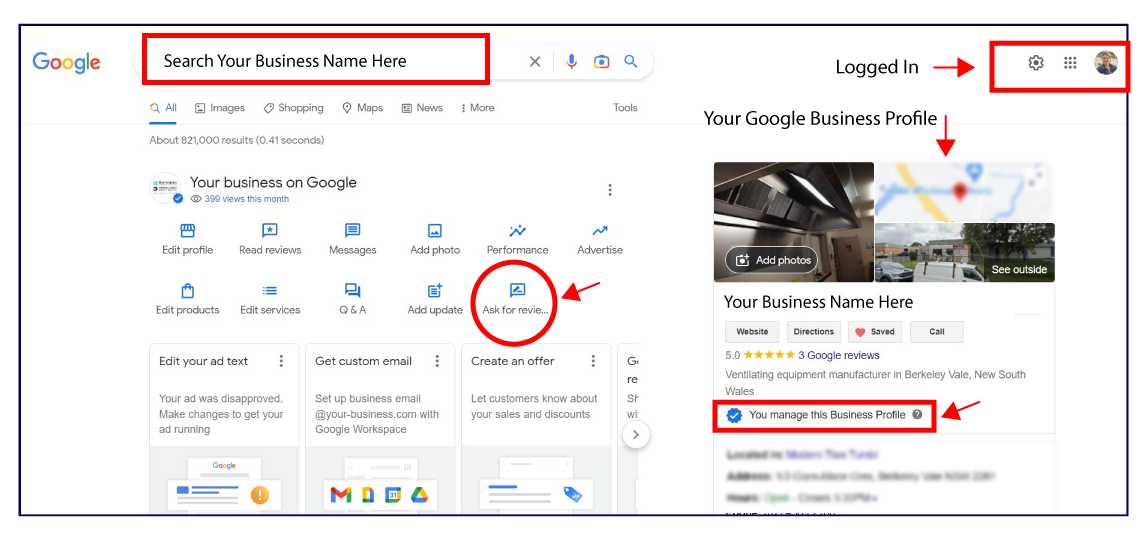
- From your Business Profile dashboard (search for "my business" on Google while logged in), find the card that says "Ask for reviews" or "Get more reviews."
- Click it. Google will generate a unique, short, shareable link (e.g.,
).g.page/r/YourBusiness/review - This link takes customers directly to the review submission window for your business, making the process faster.
- Share this link via email, text message, social media, or in your email signature.
Creating a QR Code for In-Person Review Requests
For businesses with physical locations, a QR code is an incredibly effective tool.
- From the same "Ask for reviews" section in your dashboard, you can often download a custom-branded image with your QR code.
- Print this code on receipts, business cards, flyers, or a small sign at your point of sale.
- Customers can scan the code with their phone camera and be taken directly to your review page, making it easy to leave feedback while their positive experience is still top of mind.
Turning on Review Notifications
You can't manage what you don't measure. In your profile settings, ensure that email or mobile notifications for new reviews are turned on. Prompt notifications are essential for effective review management, allowing you to thank positive reviewers and address negative feedback quickly.
Step 5: Establish Your Review Management Workflow
Your setup isn't complete until you have a plan for managing the reviews you receive. A proactive strategy shows existing and potential customers that you are listening, you care about their feedback, and you are committed to excellent service.
Plan to Respond to Every Review
Responding to reviews—both positive and negative—is a powerful signal for local SEO and customer service. Aim to respond within 24 hours.
- For positive reviews: Thank the customer by name and mention something specific from their review. This shows you read it and validates their experience.
- For negative reviews: Respond promptly, professionally, and empathetically. Acknowledge their issue, avoid getting defensive, and offer to take the conversation offline to resolve it. This shows accountability to everyone who sees the review.
Understand How to Handle Negative or Fake Reviews
Not all negative reviews are legitimate. It's crucial to know your options. Familiarize yourself with Google's review policies. You can flag and request the removal of reviews that are spam, off-topic, contain hate speech, or represent a conflict of interest. For legitimate negative feedback, use it constructively to improve your business operations.
Best Practices for Asking for Reviews (And What to Avoid)
Getting reviews is about more than just a link; it's about your process. To stay compliant with Google's policies and build genuine trust, follow these key principles:
- DO make it part of your process. Ask for reviews at the natural end of a transaction when the customer is happiest.
- DO personalize the ask. A simple, personal email or text is more effective than a generic blast.
- DO NOT offer incentives or discounts in exchange for reviews. This is against Google's policy and can lead to review removal.
- DO NOT selectively ask for reviews from only happy customers (this is called "review gating"). Google's policy requires you to solicit feedback from all customers equally.
- DO NOT set up a review station or kiosk at your business. Reviews should come from the customer's own device and location to be seen as authentic.
Step 6: Leverage Reviews on Your Website to Build Trust
Your Google reviews are powerful social proof, but they shouldn't only live on Google. The final step in a complete setup is to bring this trust signal directly to your website, where potential customers make their final decisions.
Use a Google Reviews Widget
Instead of manually copying and pasting testimonials (which can look dated and are hard to keep fresh), a Google Reviews Widget automatically syncs and displays your latest reviews on your website. Placing these authentic testimonials on your homepage or service pages can significantly increase conversions by reassuring visitors they're making the right choice.
While some website builders offer basic integrations, dedicated tools provide more control and a more professional look. For example, services like
https://www.embed-review.comFrequently Asked Questions (FAQ)
Why aren't my Google reviews showing up?
New reviews can sometimes be delayed due to Google's automated spam filters. If a review is missing for more than a few days, it may have been flagged and removed for violating Google's content policy, or the user who left it may have deleted their account.
Is Google Business Profile (formerly Google My Business) free to set up?
Yes, creating, claiming, and managing your Google Business Profile is a completely free and powerful tool offered by Google to help businesses manage their online presence across Search and Maps.
Can I turn off reviews on my Google Business Profile?
No, you cannot disable the review feature on your profile. Reviews are a core component of user-generated information on Google Maps. The best and only recommended strategy is active review management, not avoidance.
How do I edit my business information after setting it up?
You can edit your business information at any time. Search for "my business" on Google while logged into your management Google Account, or go directly to your Business Profile dashboard. From there, you can select "Edit profile" to update your hours, address, services, and more.
What's the impact of reviews on my local ranking?
High-quality, positive reviews are a major local ranking factor. A steady stream of positive feedback signals to Google that your business is relevant, trustworthy, and provides a good customer experience, which can significantly improve your visibility in both Google Search results and the Google Maps "local pack."
Next Step: Explore embed-review.com
If this guide was useful, visit embed-review.com to learn how their product can help:
- What embed-review.com offers: Embed Review provides a service for businesses to showcase their Google Reviews on their website using a beautiful, embeddable widget. The tool is set up in minutes without coding by pasting a code snippet, automatically updates reviews, and offers customization options to match a brand's design. It is designed for various local businesses to build trust and increase conversions.
- Website: https://www.embed-review.com
